


What Is Robots.txt? Complete SEO Guide for Beginners
Robots.txt is a text file that tells search engine crawlers which parts of a website they are allowed or not allowed to access. In Technical SEO, a properly configured robots.txt file helps manage website crawling and prevents crawlers from wasting resources on selected URLs.
If you want to improve your website's technical SEO, understand Googlebot crawling, or learn how to create a robots.txt file for WordPress, this guide will walk you through the process with practical examples.
In this guide, you will learn what robots.txt is, how it works, its importance in SEO, useful directives, WordPress configuration, testing methods, and common mistakes to avoid.
What Is Robots.txt in SEO?
A robots.txt file is a plain-text file placed in the root directory of a website. It contains rules that communicate crawling preferences to search engine bots, such as Googlebot.
For example, if your website has hundreds of URLs, you may not want search engine crawlers to access every administrative or unnecessary URL. A robots.txt file can help manage access to selected paths.
Consider a website like https://example.com/. Its robots.txt file would usually be available at:
https://example.com/robots.txt
When a compatible crawler visits a website, it can check this file and follow the applicable rules.
Important: Robots.txt controls crawling, not guaranteed removal from Google Search. A blocked URL may still appear in search results if Google discovers it through other links.
Why Is Robots.txt Important for SEO?
Robots.txt is an important part of technical SEO because it helps website owners manage how crawlers access their websites.
Here are the main benefits.
Here are the main benefits.
1. Manage Search Engine Crawling
You can restrict crawling of selected directories or URL patterns that do not need to be accessed by particular crawlers.
This can be useful for websites with many URLs or unnecessary URL variations.
2. Support Crawl Budget Management
Search engines allocate resources to crawl websites. For large or frequently updated websites, reducing unnecessary crawling may help crawlers spend more time on useful URLs.
However, a small website does not automatically need complicated robots.txt rules. Start by identifying a real crawling problem before blocking anything.
3. Avoid Blocking Important SEO Resources
A robots.txt file can control access to files and directories, but blocking important CSS or JavaScript resources may prevent Google from understanding how a page renders.
Always check whether a resource is necessary for Google to interpret your page correctly.
4. Declare Your XML Sitemap
You can include your XML sitemap location in robots.txt. This gives compatible crawlers another way to discover your sitemap.
For example:
Sitemap: https://example.com/sitemap_index.xml
Use the actual sitemap URL generated by your website. WordPress SEO plugins may generate a sitemap index or a different sitemap path.
How Does Robots.txt Work?

Robots.txt works through simple instructions called directives.
When a crawler checks the file, it identifies the rules relevant to its user-agent and applies the rules it supports.
For example, consider this robots.txt file:
User-agent: *
Disallow: /private-area/

Sitemap: https://example.com/sitemap.xml
Here is what each line means:
User-agent: *applies the following rules to all crawlers that support this wildcard.Disallow: /private-area/asks matching crawlers not to crawl URLs within that path.Sitemap:specifies the location of the XML sitemap.
The instructions are not an access-control or security mechanism. Malicious bots may ignore them, so private information must be protected through proper authentication and permissions.
Common Robots.txt Directives Explained
Understanding robots.txt syntax helps you avoid mistakes that can affect website crawling.
User-agent
Understanding robots.txt syntax helps you avoid mistakes that can affect website crawling.
User-agent: Googlebot
Disallow: /temporary/
This rule asks Googlebot not to crawl URLs matching the specified path.
Disallow
The Disallow directive identifies a path that a matching crawler should not access.
User-agent: *
Disallow: /test/
This asks compatible crawlers to avoid crawling the /test/ directory.
Allow
The Allow directive can permit crawling of a path, including a more specific path within a disallowed directory.
User-agent: *
Disallow: /resources/
Allow: /resources/important-page/
Google supports specific matching rules, including the use of Allow and Disallow together. Check the applicable rules carefully before using this pattern.
Sitemap
The Sitemap directive specifies the full URL of an XML sitemap.
Sitemap: https://example.com/sitemap.xmlA sitemap helps search engines discover URLs; it does not guarantee crawling or indexing.
How to Create a Robots.txt File
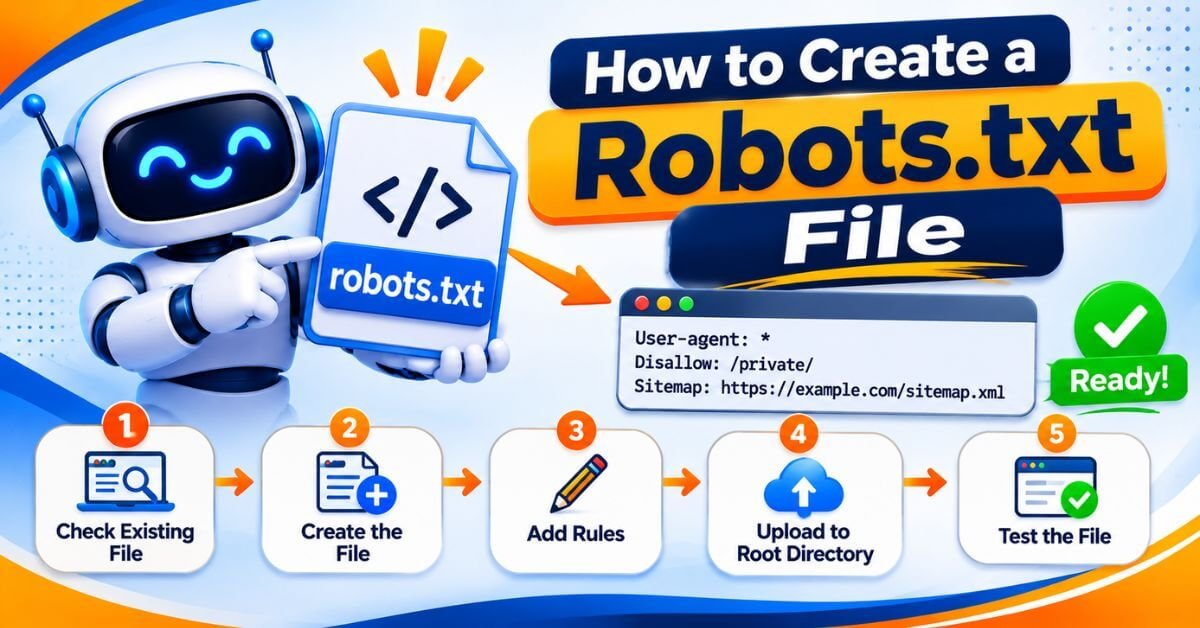
You can create a robots.txt file using a plain-text editor, your hosting file manager, or a website-specific configuration option.
Follow these steps.
Step 1: Check Your Existing Robots.txt File
Open your browser and visit:
https://yourdomain.com/robots.txt
Replace yourdomain.com with your actual domain.
If a file is already available, review it before making any changes. Do not overwrite existing rules without understanding their purpose.
Step 2: Create the File
If you need a new file, open a plain-text editor such as Notepad and save the file with the exact name robots.txt.
Use UTF-8 encoding and avoid formatting it as a Word document.
Step 3: Add Appropriate Rules
A simple example for a website that wants to allow crawling is:
User-agent: *
Disallow:

Sitemap: https://example.com/sitemap.xml
An empty Disallow value means that no path is disallowed by this rule group.
This is only an example. Check your current sitemap URL and existing website requirements before using it.
Step 4: Upload the File to the Website Root
The file must be available at the root of the relevant host, such as:
https://example.com/robots.txt
Placing it at https://example.com/blog/robots.txt will not control crawling for the entire website.
Step 5: Test the File
Open the file in your browser and verify that it loads correctly. Then review the rules and check important URLs with the available Google Search Console tools.
Google's official instructions are available in its robots.txt creation guide.
How to Set Up Robots.txt in WordPress
If your website runs on WordPress, you may not need to create a file manually.
The correct method depends on your hosting environment and the plugins installed on your website.
Method 1: Check Your Existing File
Open:
https://yourdomain.com/robots.txt
WordPress may provide a virtual robots.txt response when no physical file exists. A physical file or hosting configuration may affect what you see.
Method 2: Use Your Hosting File Manager
If your hosting setup allows it, access the website's root directory through the hosting file manager or SFTP.
Check whether a physical robots.txt file already exists before editing or replacing it.
Method 3: Review Your SEO Plugin
SEO plugins may offer tools for managing robots.txt settings, depending on the plugin version and website configuration.
If you use Rank Math or another WordPress SEO plugin, check its current settings and documentation before making changes.
WordPress SEO tip: Never add a broad disallow rule without checking the effect on your important pages, blog posts, CSS, JavaScript, and other resources.
A Practical Robots.txt Example for WordPress
Here is an illustrative example of a WordPress robots.txt file:
User-agent: *
Disallow: /wp-admin/
Allow: /wp-admin/admin-ajax.php

Sitemap: https://example.com/sitemap_index.xml
This example asks matching crawlers to avoid the WordPress administration directory while allowing access to admin-ajax.php. It also declares a sitemap index.
Before using this configuration, verify your site's actual sitemap URL and whether the rules are appropriate for your setup.
Do not automatically block /wp-content/ or other resource directories. Doing so may interfere with Google's ability to render and understand your website.
Robots.txt vs Noindex: What Is the Difference?
One of the most common technical SEO mistakes is confusing crawling with indexing.
If you want Google to process a noindex directive, do not block the page in robots.txt because Google needs to crawl the page to see that directive.
For content that must remain private, use authentication or appropriate access restrictions.
How to Test Robots.txt for SEO Issues

After creating or editing your robots.txt file, check whether the rules work as intended.
1. Open the Live File
Visit https://yourdomain.com/robots.txt and confirm that the correct file is publicly accessible.
2. Review Google Search Console
Use Google Search Console's available crawling and URL Inspection information to investigate whether Google can access important pages.
The URL Inspection tool can help identify crawling restrictions and other indexing issues for individual URLs.
3. Check Important Pages
Review your homepage, course pages, blog posts, category pages, and other URLs that you want search engines to discover.
Make sure the rules do not accidentally block essential content.
4. Review After Every Major Change
If you change hosting, install an SEO plugin, migrate a website, or update technical settings, review robots.txt again.
For further information, refer to Google Search Central's robots.txt guide.
Common Robots.txt Mistakes to Avoid
Even a small configuration error can create crawling problems.
Blocking the entire website: A rule such as Disallow: / under User-agent: * can prevent compliant crawlers from accessing the entire site.
Using robots.txt to remove pages from Google: Blocking crawling is not the same as preventing indexing.
Blocking important CSS and JavaScript: Google may need these resources to render pages correctly.
Using the wrong sitemap URL: Always verify the sitemap generated by your website.
Editing without checking existing rules: You may accidentally remove useful directives or introduce conflicting rules.
Assuming robots.txt provides security: The file is publicly accessible and should never be used to protect confidential information.
Ignoring case sensitivity in paths: URL path matching can be case-sensitive, so use the exact path you intend to target.
How Robots.txt Supports Your Overall SEO Strategy
Robots.txt is one part of a broader technical SEO strategy. A well-configured file cannot compensate for poor content, weak internal linking, slow pages, or other technical problems.
For better organic search performance, combine robots.txt checks with:
For example, if you publish a new SEO training article, make sure it can be crawled, is linked from relevant pages, and is included in your site's sitemap when appropriate.
Robots.txt does not directly improve rankings simply by existing. Its value comes from using it correctly to support a healthy crawling setup.
Final Thoughts
Understanding robots.txt is an essential step in learning technical SEO. Whether you manage a WordPress blog, a business website, or an online academy, the goal is to configure crawling rules carefully without blocking important content.
Start by checking your existing robots.txt file, verify your sitemap, test important URLs, and monitor your website through Google Search Console.
At KishorDigital Academy, our focus is on practical digital marketing knowledge that helps learners understand not just what to do, but why it matters.
Want to learn SEO, Technical SEO, and AI-powered digital marketing through practical training? Explore the courses and learning resources available at KishorDigital.
Author: Kishor Mandhotra
Digital Marketing Professional | 19 Years of Industry Experience
Website: https://kishordigital.com/
Whether you need more leads, better online visibility or a complete digital marketing solution, our team is here to understand your goals and suggest the right approach for your business. Get in touch with KishorDigital today and let’s turn your digital goals into measurable results.
Frequently Asked Questions About Robots.txt
Robots.txt is a text file that tells compatible search engine crawlers which website paths they may or may not access. It helps manage crawling but does not reliably prevent URLs from appearing in Google Search.
No. A small website may work perfectly well without a custom robots.txt file. It becomes useful when you need to manage crawler access or address specific crawling requirements.
Place it in the root directory of the relevant website host. For example, the file for https://example.com/ should be available at https://example.com/robots.txt.
Check whether your website already has a robots.txt file. You can then manage it through the appropriate hosting tools or a compatible SEO plugin, depending on your setup. Review the existing rules before making changes.
Not directly. Correct rules can help manage crawling, but rankings depend on many factors, including content quality, relevance, website accessibility, and other SEO signals.
Under a matching user-agent group, Disallow: / asks compatible crawlers not to crawl any path on the website. Applying it accidentally to your whole site can create serious SEO problems.
Yes. Google may discover and index a URL without crawling its content. If you want to prevent a page from appearing in search results, use an appropriate indexing control rather than relying on robots.txt alone.
Robots.txt provides crawling instructions and can declare a sitemap location. An XML sitemap lists URLs you want search engines to discover. Neither file guarantees that every listed or accessible URL will be indexed.