
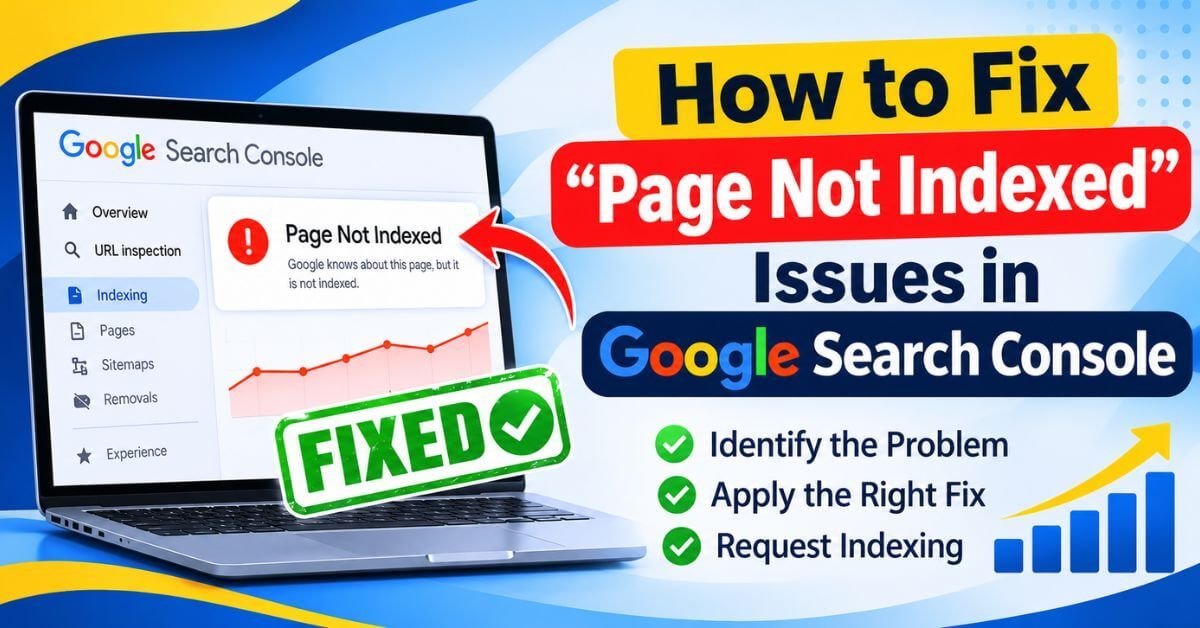

How to Fix "Page Not Indexed" Issues in Google Search Console
Have you published a new blog post or website page, but it is still not appearing in Google Search results? When you check Google Search Console, you may find a Page Not Indexed status showing that Google has discovered your URL but has not added it to its search index.
This is one of the most common SEO challenges faced by website owners, bloggers, and digital marketers. However, not every Page Not Indexed status indicates a technical error. Sometimes Google deliberately excludes duplicate, low-value, or unnecessary URLs from its index.
In this guide, we will explain how to fix Page Not Indexed issues in Google Search Console, identify common indexing problems, and implement practical solutions to improve your website's indexing performance.
With the right technical SEO practices, content improvements, and internal linking strategy, you can help Google discover, crawl, and understand your important website pages.
What Does Page Not Indexed Mean in Google Search Console?
Page Not Indexed issues in Google Search Console
Remember that indexing does not guarantee higher rankings. Your page must also provide relevant, useful, and original information to compete in search results.
How to Check Page Not Indexed Issues in Google Search Console
Do not try to fix every non-indexed URL immediately. First, identify which URLs should actually appear in Google Search.
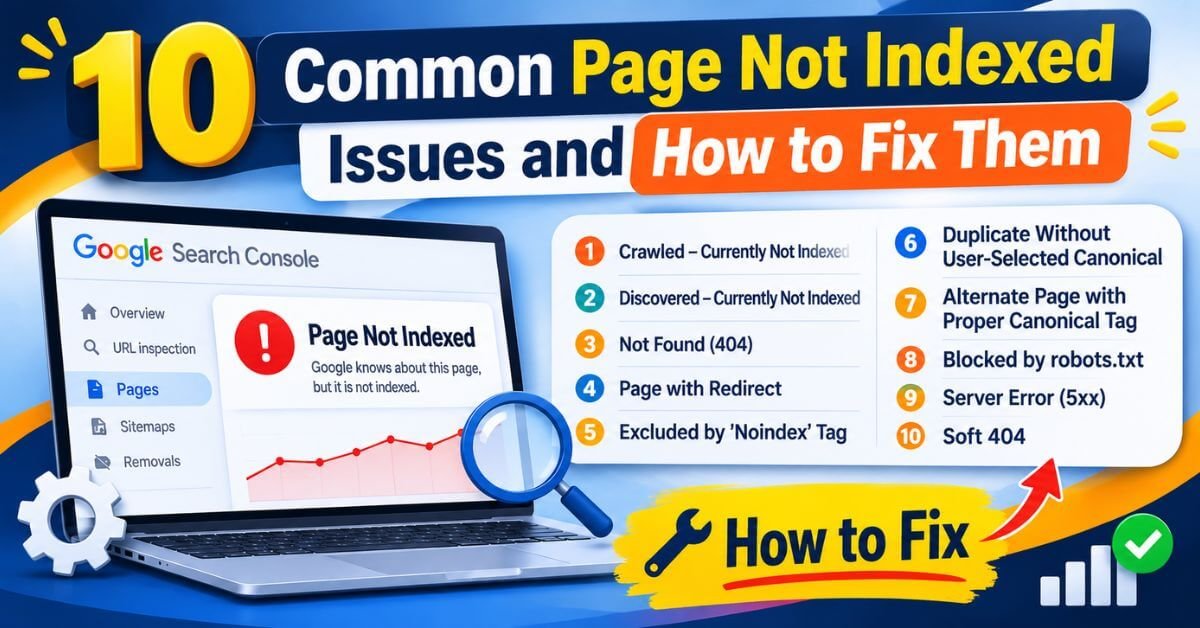
10 Common Page Not Indexed Issues and How to Fix Them
1. Crawled – Currently Not Indexed
This can happen when Google determines that the page does not currently provide enough unique value, or when it needs further processing.
Crawled – Currently Not Indexed
2. Discovered – Currently Not Indexed
This may happen when Google decides to delay crawling, including when a website has many URLs or limited server capacity.
3. Not Found (404)
For example, a blog URL may have been deleted, changed, or entered incorrectly.
4. Page with Redirect
Google generally indexes the destination URL rather than the redirecting URL.
5. Excluded by 'Noindex' Tag
Sometimes website owners accidentally enable this option through WordPress SEO settings.
6. Duplicate Without User-Selected Canonical
7. Alternate Page with Proper Canonical Tag
For example, your website may have different URL versions with similar content.
However, if the wrong URL is selected, review your canonical tags, internal links, redirects and sitemap entries.
8. Blocked by robots.txt
If a page is blocked by robots.txt, Googlebot may not be able to crawl its content.
9. Server Error (5xx)
Common reasons include server downtime, hosting limitations, configuration errors, and overloaded resources.
10. Soft 404
For example, an empty category page may return a 200 response instead of a proper 404 response.
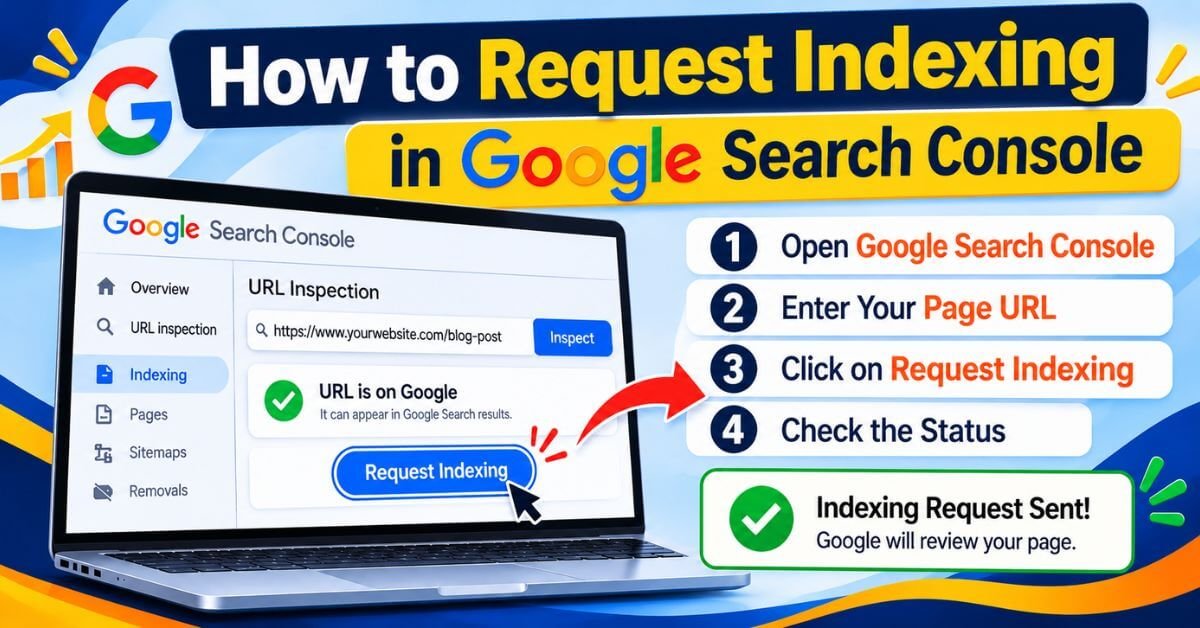
How to Request Indexing in Google Search Console
After fixing a Page Not Indexed problem, you can ask Google to crawl your updated page.
request indexing for a Page Not Indexed URL
However, requesting indexing does not guarantee immediate crawling or indexing. Google decides when and whether to index the page.
How to Improve Website Indexing for Long-Term SEO Growth
1. Maintain a Clean XML Sitemap
Your sitemap should include important, indexable and canonical website URLs. Remove unnecessary redirected, deleted and noindex URLs.
Check Google's technical requirements to understand whether your Page Not Indexed URLs are accessible and eligible for Google Search. Google Search technical requirements
2. Improve Internal Linking
Link relevant blog posts, service pages and important resources together. Internal links help Google discover your website content and understand its structure.
3. Publish Original and Helpful Content
Avoid publishing multiple articles with nearly identical information. Each page should provide a clear purpose and answer a specific user requirement.
4. Optimise Website Speed
Improve image sizes, server response time, caching and mobile performance. A technically healthy website provides a better experience for visitors and helps Google crawl efficiently.
5. Maintain Consistent Canonical URLs
Choose your preferred domain version and use consistent canonical tags, redirects and internal links.
6. Monitor Google Search Console Regularly
Review your Page indexing report whenever you publish significant content or make technical website changes. Investigate sudden increases in indexing problems.
How Long Does Google Take to Index a Page?
Some pages may be indexed within a few days, while others may take longer depending on website quality, crawl availability, content relevance and Google's indexing decisions.
Submitting a sitemap and requesting indexing can help Google discover URLs, but neither guarantees indexing.
Instead of repeatedly requesting indexing, focus on fixing the underlying issue and improving your website's overall quality.
Conclusion
Understanding and fixing Page Not Indexed issues is an essential part of technical SEO. Google Search Console provides valuable information about crawling, indexing, duplicate content, and website accessibility.
However, the goal should not be to get every URL indexed. Your priority should be ensuring that important, original, and valuable website pages are accessible to Google and eligible for indexing.
Start by identifying the actual reason, fixing the technical or content-related problem, testing the live URL, and requesting indexing when appropriate.
At KishorDigital Academy, we believe that practical SEO knowledge comes from understanding real website problems and implementing the right solutions.
Want to learn SEO, Google Search Console, and technical SEO practically? Explore digital marketing training at KishorDigital Academy and develop skills through real-world website implementation.
Whether you need more leads, better online visibility or a complete digital marketing solution, our team is here to understand your goals and suggest the right approach for your business. Get in touch with KishorDigital today and let’s turn your digital goals into measurable results.